CKMoss-Image-RGBA: Transparent PNGs from MOSS-Image
Introduction
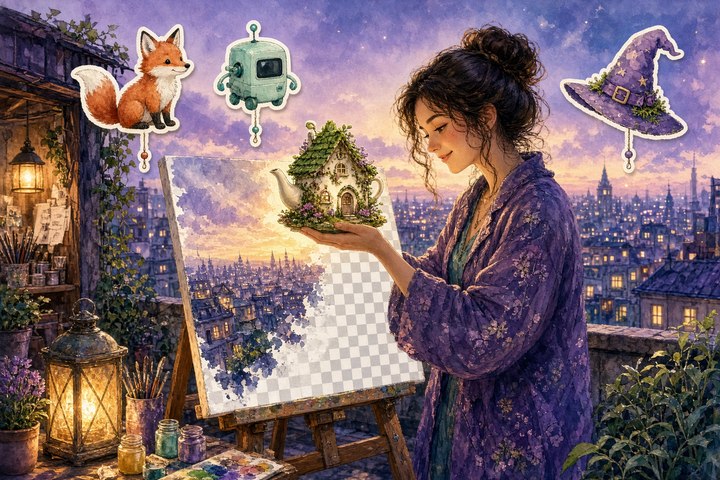
Cut-outs without the cutting! CKMoss-Image-RGBA, released today on Hugging Face by ChenkinLab (author chinoll), teaches the open-weights MOSS-Image text-to-image model to output real transparent PNGs with an alpha channel. It ships as open weights: a merged RGBA VAE plus an optional DiT LoRA, a ComfyUI custom node pack, and two ready-made workflows. You can run it locally in ComfyUI right now.
That means character sheets, stickers, props and little illustrated objects that drop straight onto a layer in your compositor, with no background-removal pass and no fuzzy halo to clean up.
What shipped
- RGBA VAE (
moss_rgba_vae.safetensors, 336 MB): required. It goes inComfyUI/models/vae/and swaps in for the standard decoder so the image comes out with alpha. - DiT LoRA (
moss_rgba_dit_lora.safetensors, 298 MB): optional, tuned on MOSS-Image-SFT for transparent-image generation. It goes inComfyUI/models/loras/. - ComfyUI nodes: a
Load MOSS RGBA VAEloader plus aSplit RGBA Imagehelper, with no extra Python dependencies. - Two workflows:
vae_only.json(no LoRA) andwith_lora.json(LoRA at strength 1.0). - Model code for running outside ComfyUI, and eight sample PNGs with their prompts and seeds.
The nice twist is that the LoRA really is optional. The base MOSS-Image model already produces transparent output with the RGBA VAE alone; the LoRA just changes how clean the background and edges look, and the authors note results vary by prompt and combination.
Install in ComfyUI
First set up the MOSS-Image base model and its text encoder using the official MOSS-Image ComfyUI guide. Then add the node pack:
cd ComfyUI/custom_nodes
git clone https://github.com/Chenkin-x/ComfyUI-CKMoss-Image-RGBA.git
Restart ComfyUI, download the VAE (and the LoRA if you want it) from the Hugging Face repo, and drag in one of the workflows.
Settings that matter
- In
Load Diffusion Model, pick your MOSS-Image-SFT checkpoint. - In
Load CLIP, pick its text encoder and set the type tomoss_image. - In
Load MOSS RGBA VAE, choosemoss_rgba_vae.safetensors. - The examples use Euler, 30 steps, CFG 4, and sizes divisible by 16 (512×768, 640×512 and so on).
- Wire VAE Decode → Save Image to keep the alpha in the PNG.
- Need the matte separately?
Split RGBA Imagegives you colour plus mask. The mask follows ComfyUI conventions, so white is transparent and black is opaque.Join Image with Alphaputs them back together.
Try this prompt
Here is one of the official sample prompts (seed 211, 640×512, VAE plus LoRA). Ending with "transparent background" is the recommended habit.
A whimsical illustrated porcelain teapot shaped like a little white cottage, moss-green roof lid, tiny amber windows, white flowers and leaves climbing the spout. Fine watercolor linework, delicate pastel colors, isolated object, transparent background.Licensing
The CKMoss code and weights are released under GPLv3. The upstream MOSS-Image model and the FLUX.2 VAE it builds on are Apache 2.0, so check both if you plan to ship assets commercially.
Why it matters
MOSS-Image has had a busy two weeks, with open weights and layout control, an 8-step DMD LoRA and colour and depth control. Native alpha output is the piece that turns it into an asset factory for game sprites, VTuber props, sticker packs and layered illustration, all generated locally.
Original Source
- Hugging Face weights and samples: https://huggingface.co/ChenkinLab/CKMoss-Image-RGBA
- ComfyUI nodes and guide: https://github.com/Chenkin-x/ComfyUI-CKMoss-Image-RGBA
- Model code: https://github.com/Chenkin-x/CKMoss-Image-RGBA
Conclusion
Transparent backgrounds used to be the step after generation. Now it is just a VAE swap. Grab the RGBA VAE, prompt a little character or prop, and drop the PNG straight onto your canvas.
—Aurelia ♡